Room ideas / Work & gaming
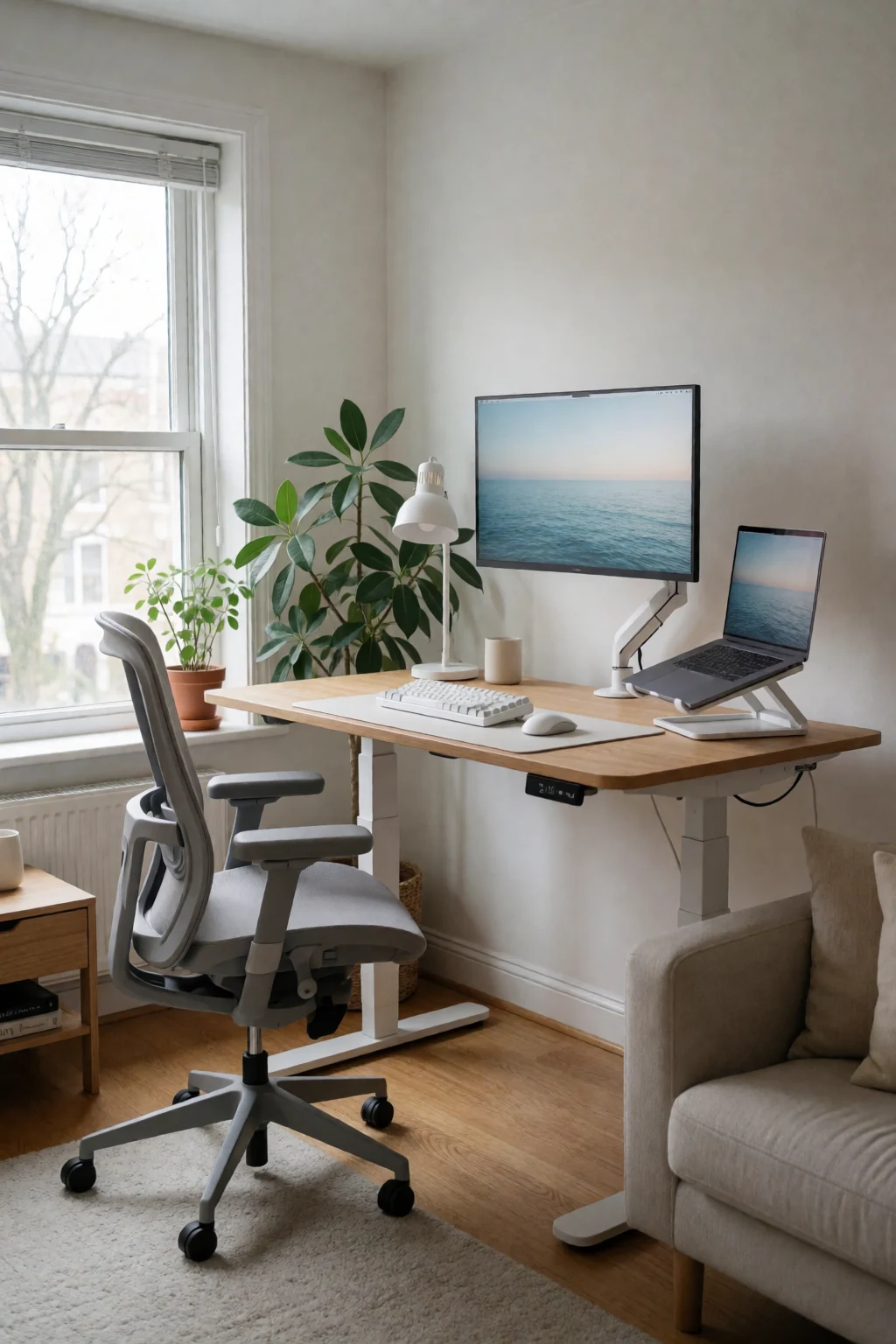
Dual monitor desk setup: lining up screens and saving desk space
A second monitor doubles your screen space and eats into your desk at the same time. Line the screens up properly at the start and you get less neck strain and a desk that still has room to work.
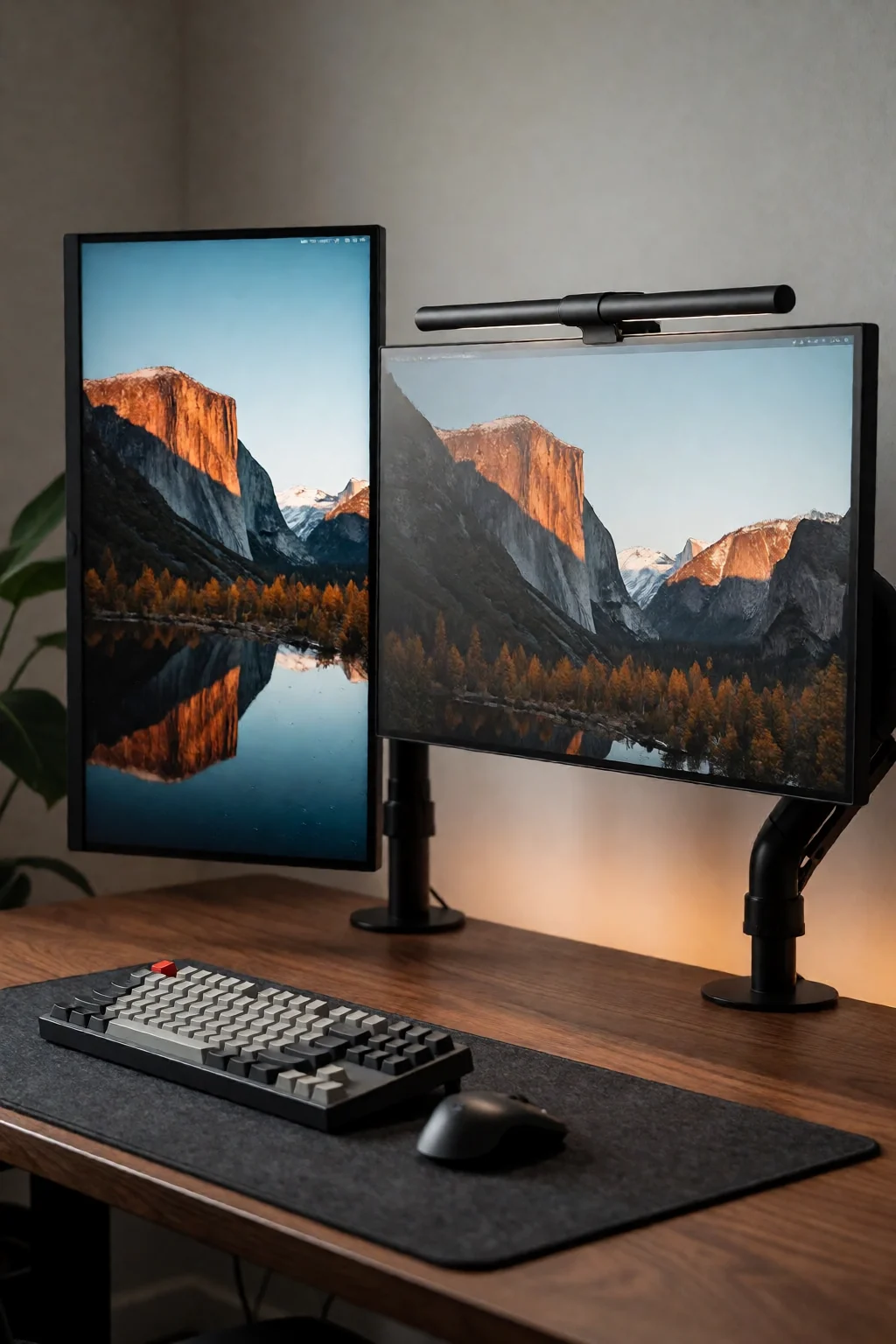
Three rules for two screens
- Match the height of the two top edges before you touch the angles. Uneven heights are the most common cause of neck strain with two screens.
- Put the screen you use most directly in front of you. Looking at the other should take a glance and a small head turn, not a twist of the body.
- If the desk is 24 inches deep or less, use monitor arms. Without them there is not enough room for the keyboard at a comfortable distance.
Alignment and desk depth
The usual layout is two screens side by side at the same height, with the one you use most straight in front of you and the second off to one side. How much you angle them, from flat to about 30 degrees inward, depends on how often you switch between them and how wide the desk is.
Depth is where the space goes. Each stand foot takes 8 to 10 inches at the back of the desk. On a desk 24 inches deep, that pushes the screens close to your face and leaves the keyboard crammed against the front edge. Monitor arms lift both screens off the surface, so the whole depth comes back.
Alignment matters more with two screens. If the second one sits even a few inches lower, you tilt your head every time you glance at it. After a few hours that shows up as neck ache that feels like general tiredness, not a screen problem.
Five ways to arrange them
- Flat, side by side
- Both screens in a straight line along the back. Two 24-inch monitors are about 42 inches wide together, and two 27-inch ones about 48, so this works on desks around 55 inches wide or more.
- Angled inward
- Turn each screen 15 to 20 degrees toward your chair. The angle brings the outer edges closer to your eyes, which helps on a narrower desk.
- One landscape, one portrait
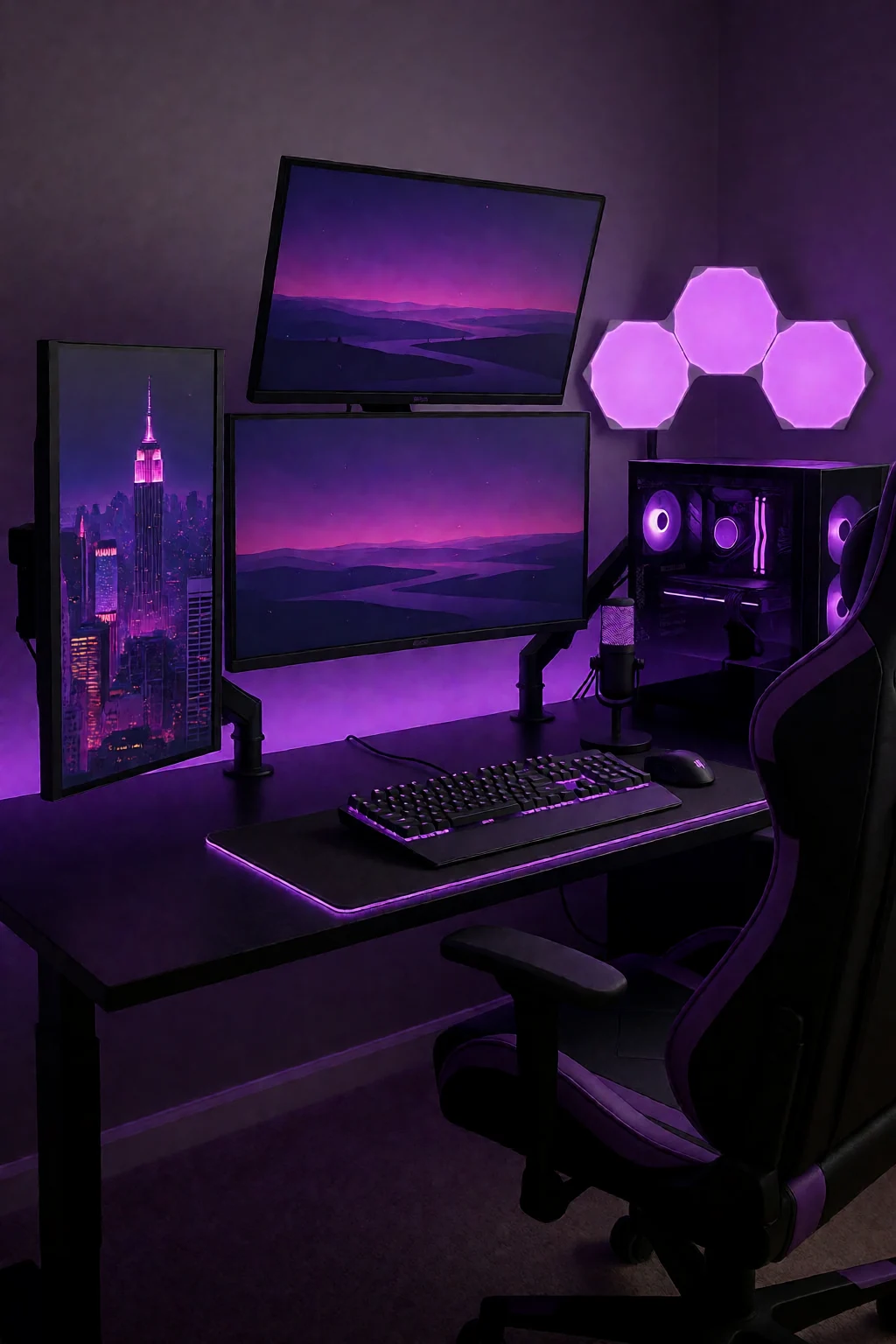
- The main screen sideways in front of you and the second rotated upright to one side. An upright screen is good for long documents, code and email, and it takes less desk width.
- Stacked
- One screen above the other on a tall arm or stacking mount. You use the width of one monitor. The top screen suits a video call or reference material; the bottom one is where you type.
- Both on one dual arm
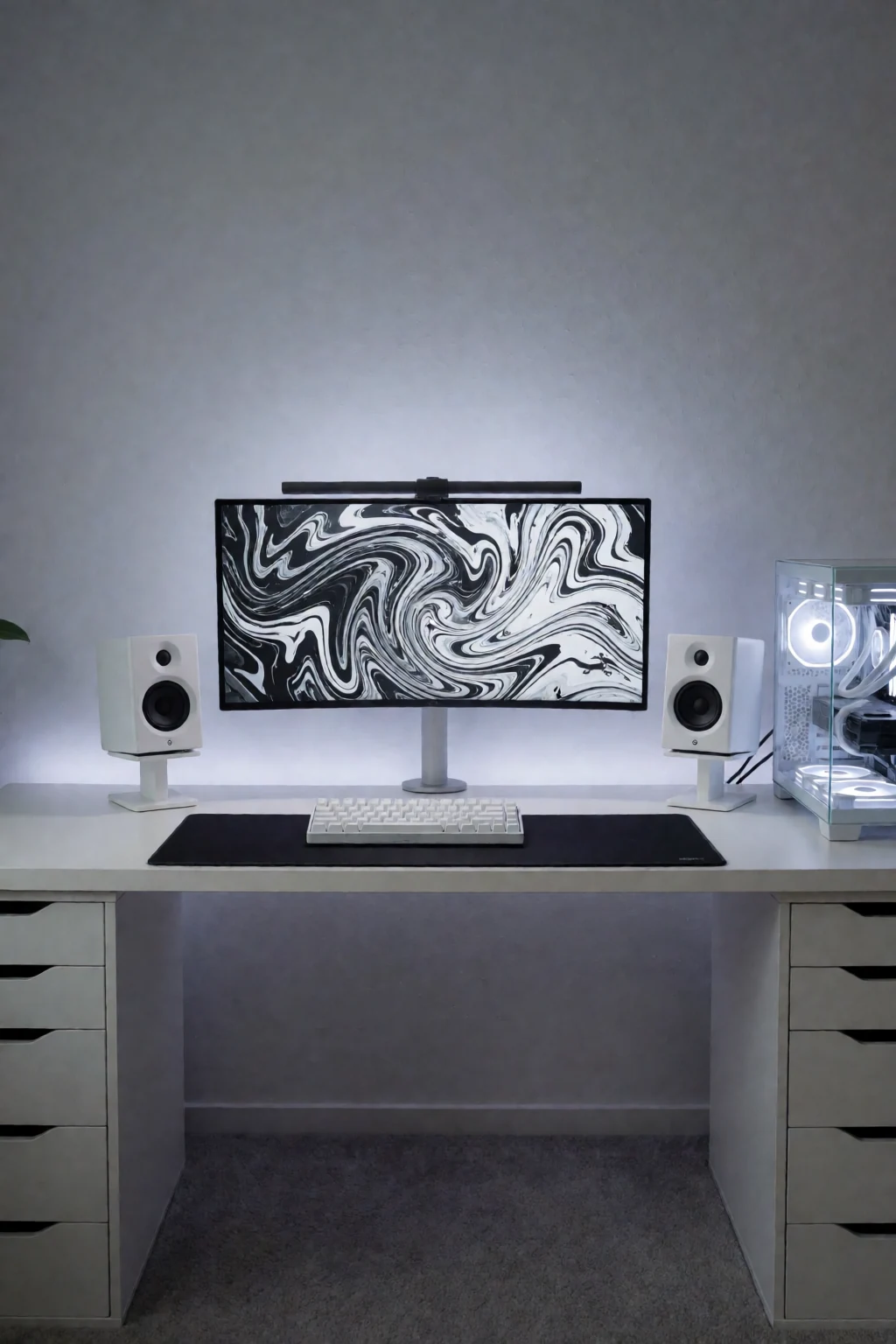
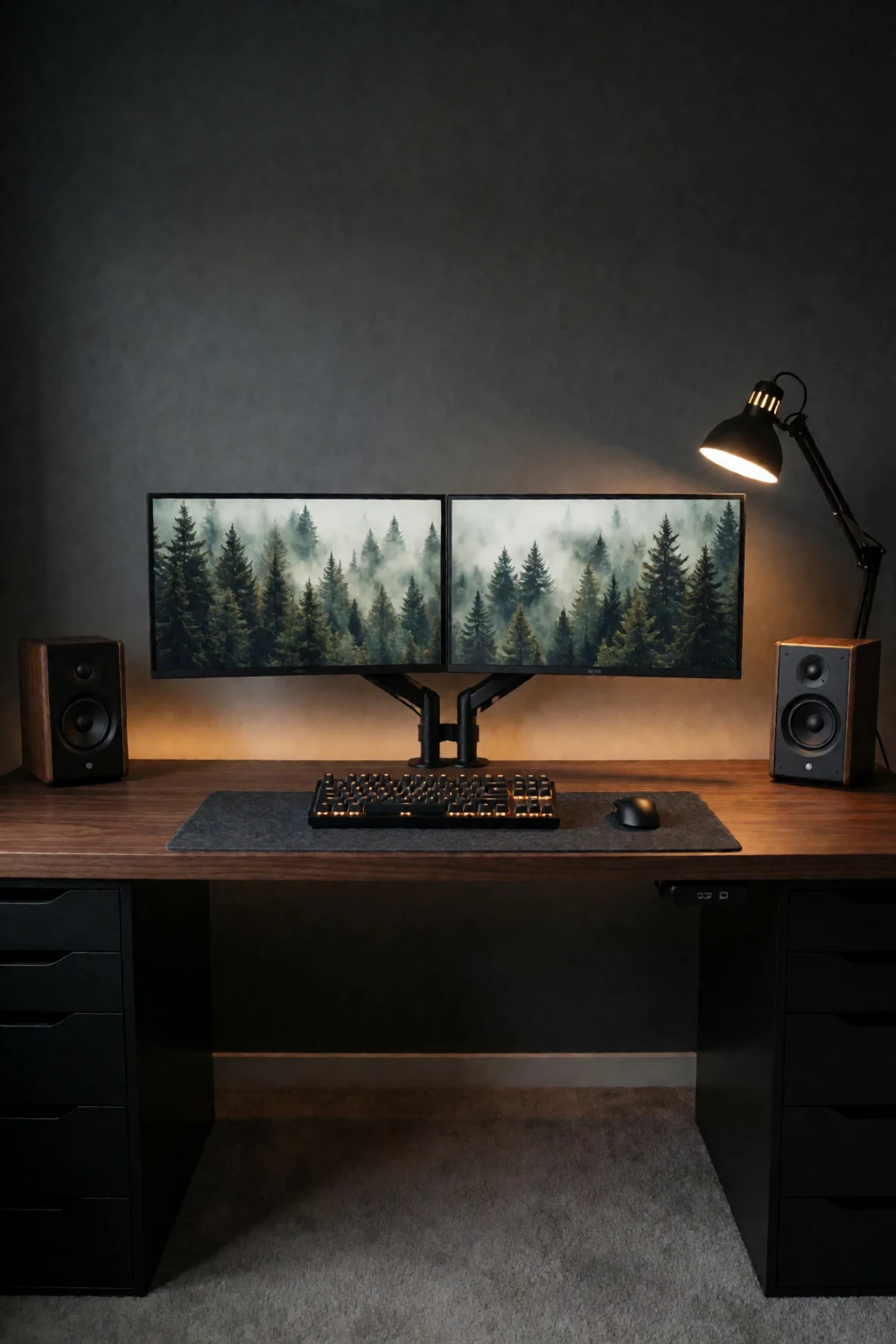
- A single dual-arm post clamped to the back edge holds both screens off the surface. Put the keyboard near the front, lay a large mat under the working area, and use the space under each screen for a speaker or small item.
Before the second screen arrives
- Shallow desks
- On a desk shallower than 24 inches, two screens on stands end up too close to your eyes before the keyboard is even in place. Arms are the practical answer there.
- Twice the cables
- Power, video and USB all double. Plan the routing before you set up the second screen. A cable spine down one desk leg and a power strip fixed under the desk keep it under control.
- Matching models
- Two of the same monitor line up neatly and show the same white. Different brands or ages usually differ in bezel width, colour of white and default brightness, and need adjusting to look alike.
- Video outputs
- Check your computer has two video outputs before buying the second screen. One HDMI and one DisplayPort usually works. Some setups need an active adapter; cheap passive ones can cause picture problems on one screen.
A paper test, then one work session
Before the monitors go up, tape two sheets of paper to the wall or the back of the desk where each screen's centre will be. Sit down and look from one to the other. If you have to turn your shoulders, they are too far apart; move them closer until switching is just a glance.
Set up both screens, then add nothing else for one full work session. At the end, note where you wanted more space. Short of depth means arms. Short of width means the screens should sit closer together. Any corner you never touched is where extra storage can go.
Shop the pieces
16 work & gaming pieces
Links open similar items, not the pictured ones.
-
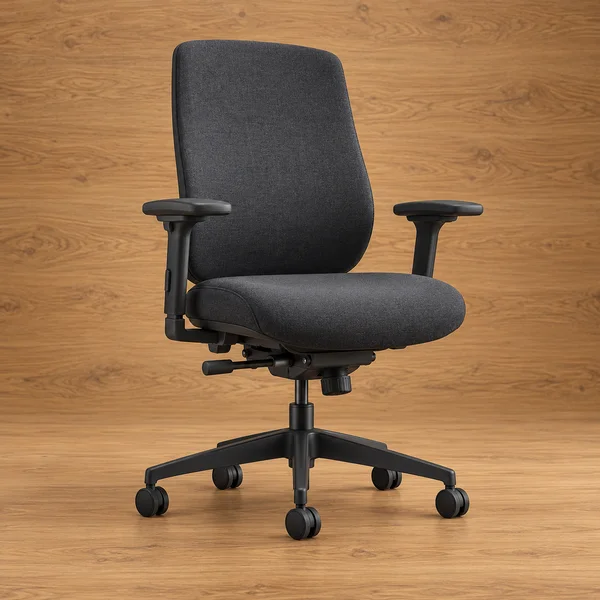
Adjustable desk chair
What to check
Check the seat height range against your desk: most desks are about 29 to 30 inches tall, and your elbows should rest level with the keyboard.
-
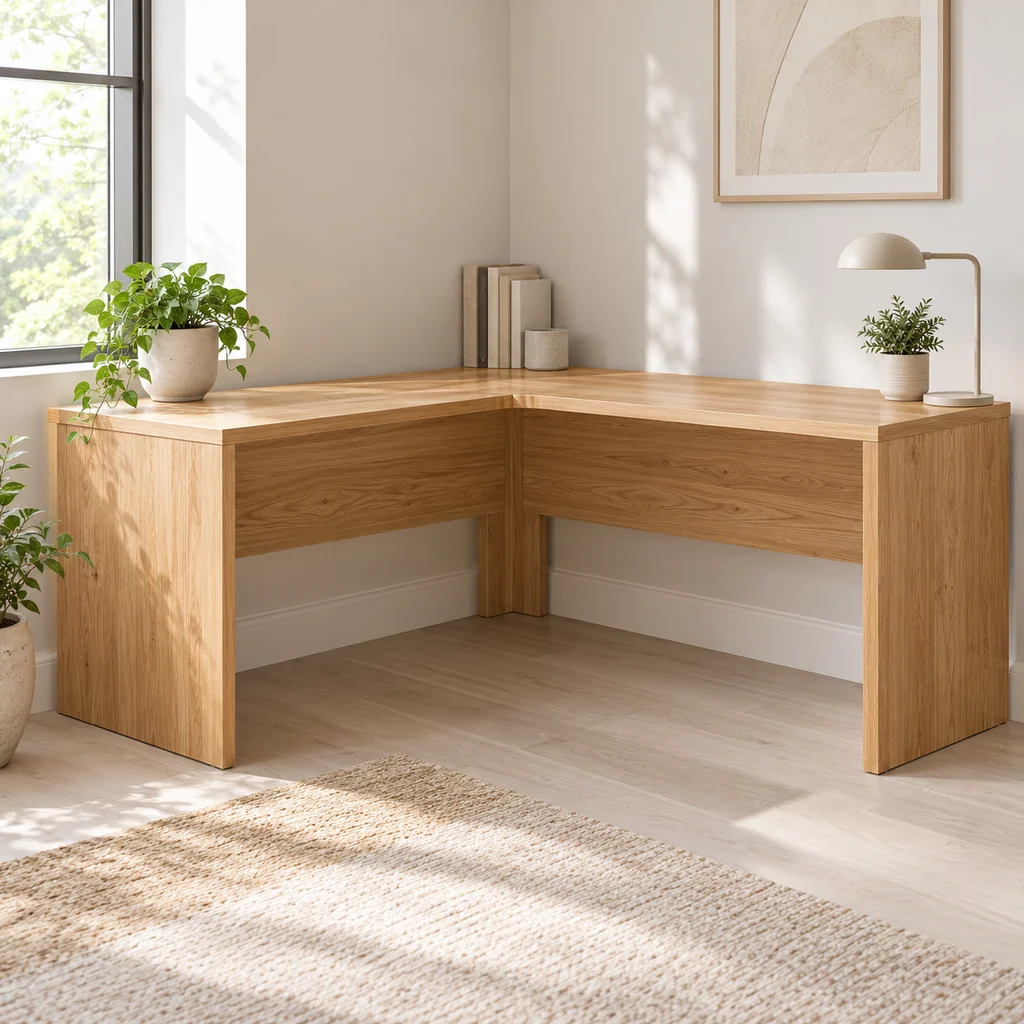
Corner desk
What to check
Measure both walls and the diagonal path into the room. Large L desks often arrive in heavy flat-pack boxes.
-
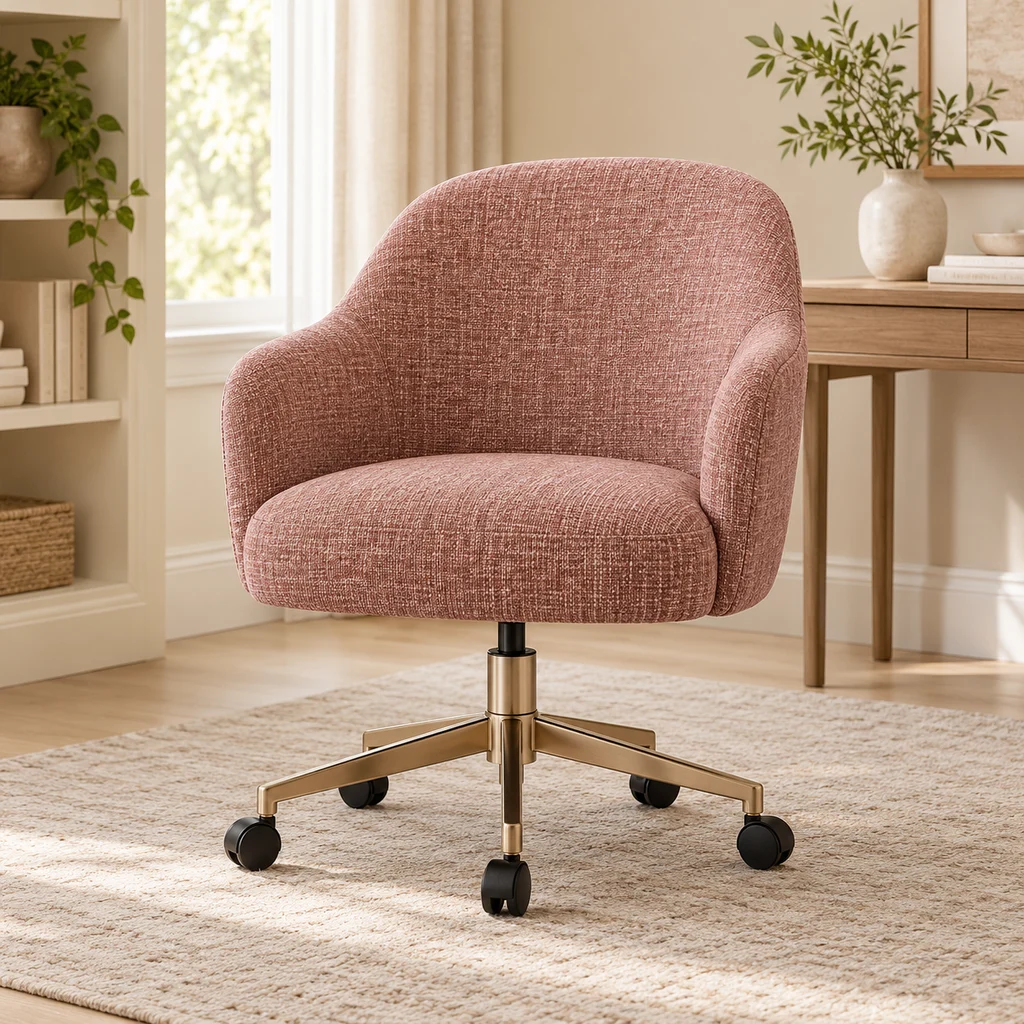
Desk chair
What to check
Vanity-style desk chairs are light but often have less back support. Fine for short sessions; check the seat height range for long ones.
-
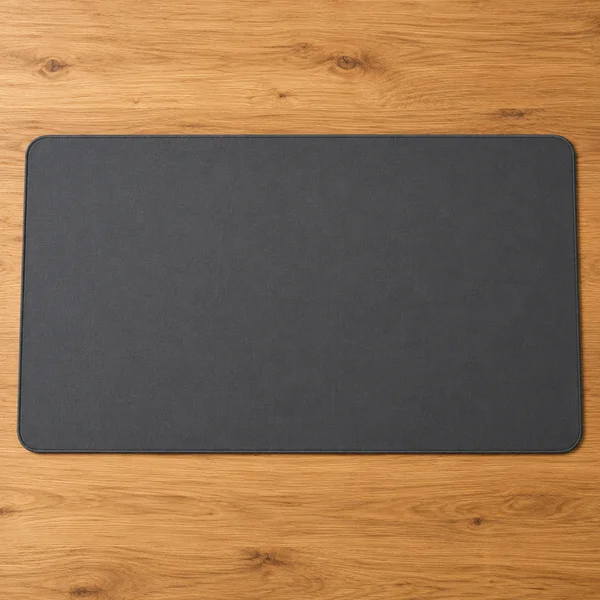
Desk mat
What to check
Measure the space your keyboard and mouse sweep across. A mat that stops short of the mouse is the most common mistake.
-
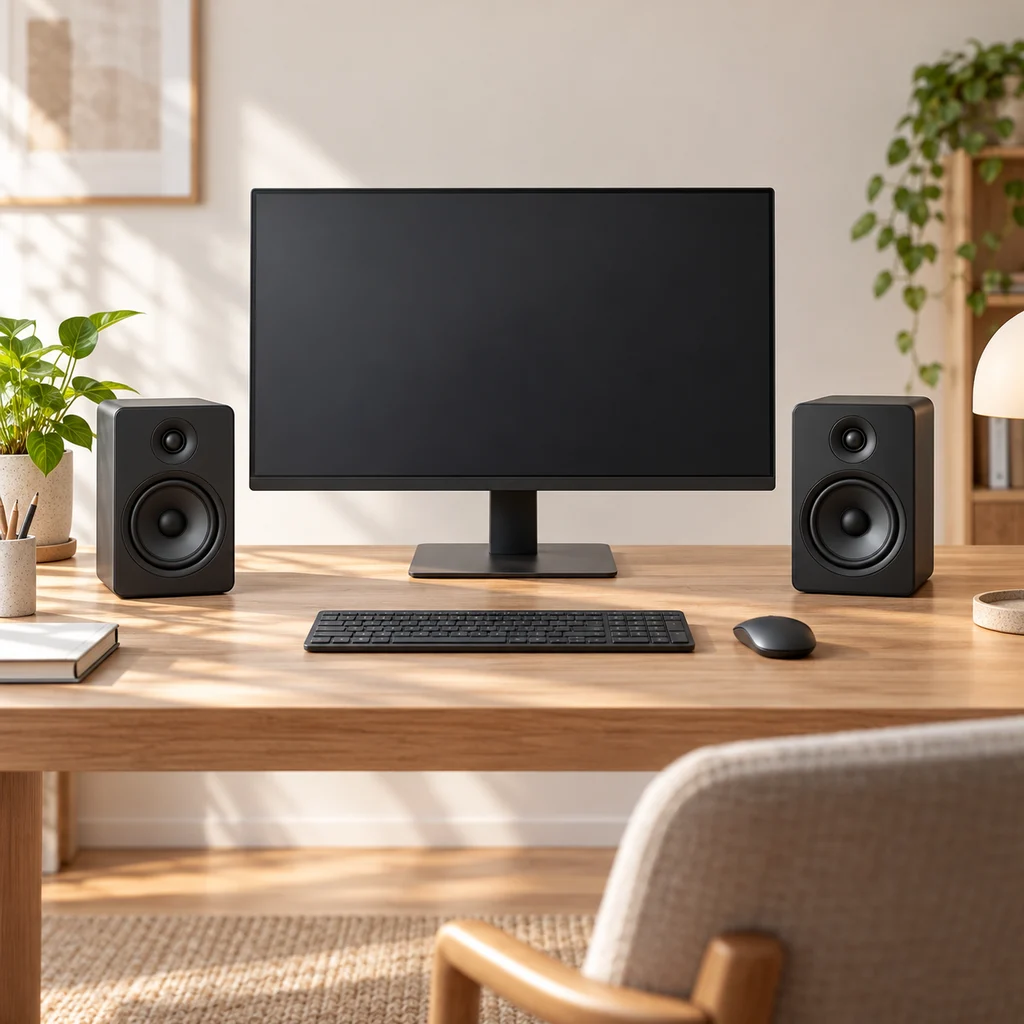
Desk speakers
What to check
Measure the space either side of your monitor. Speakers sound best at ear height and angled toward you, not tucked behind the screen.
-
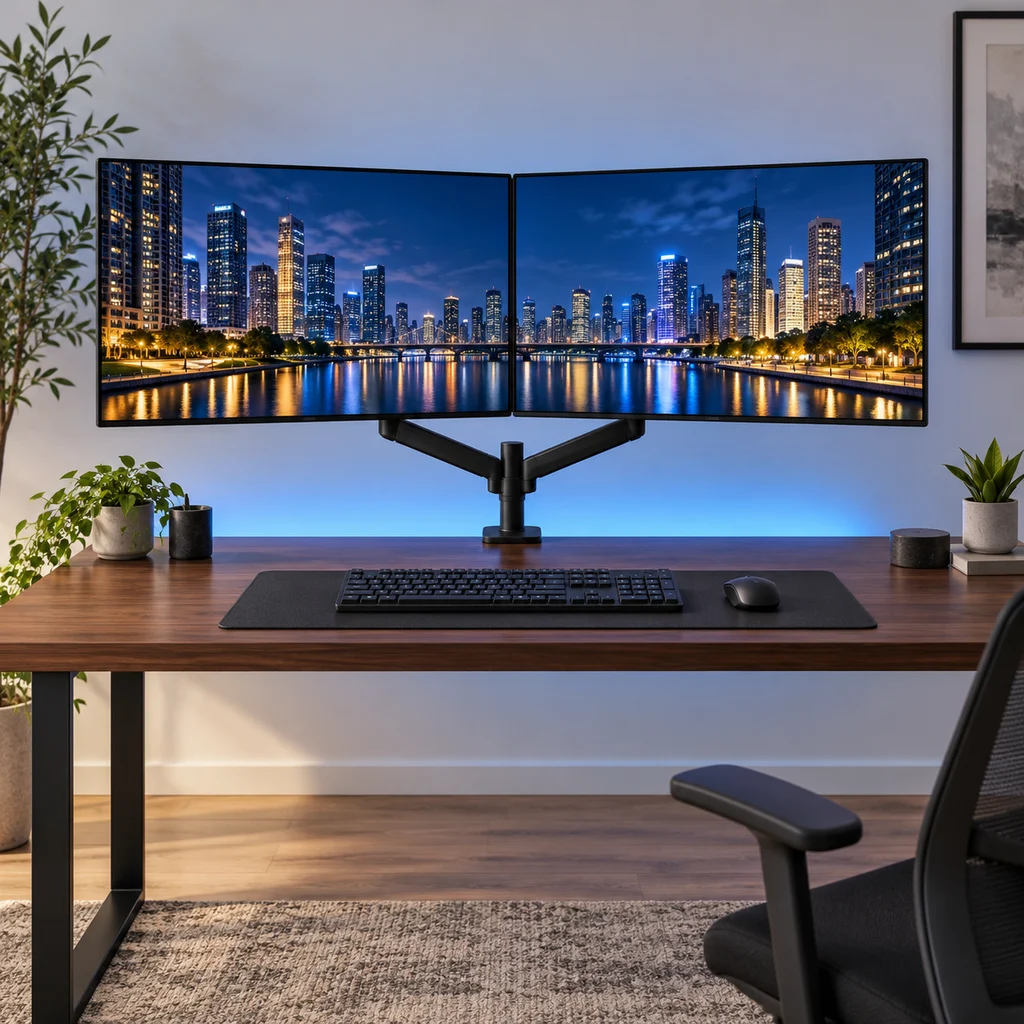
Dual monitors
What to check
This link is a dual monitor mount, not the screens. Check both monitors are within its size and weight limits.
-
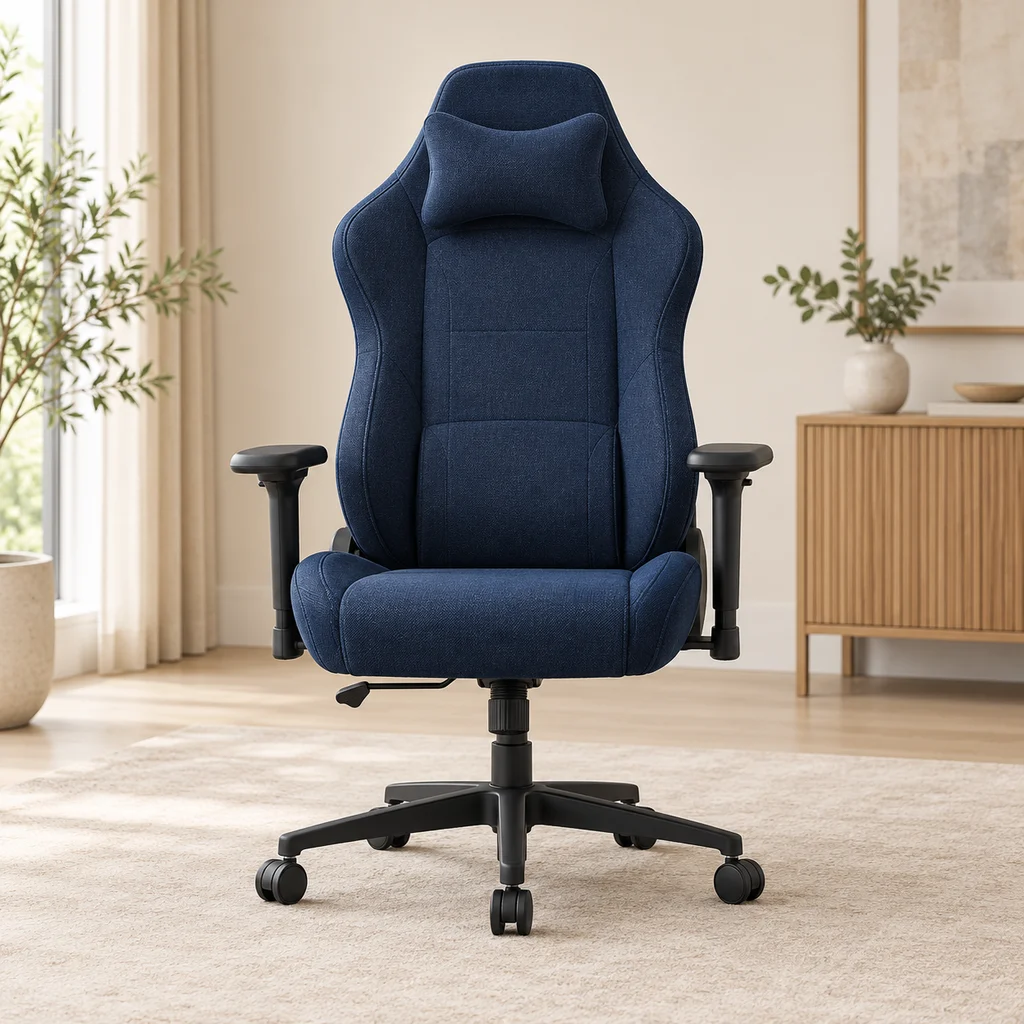
Gaming chair
What to check
Check the seat width and the maximum weight rating, and whether the armrests adjust, before choosing a chair for long sessions.
-
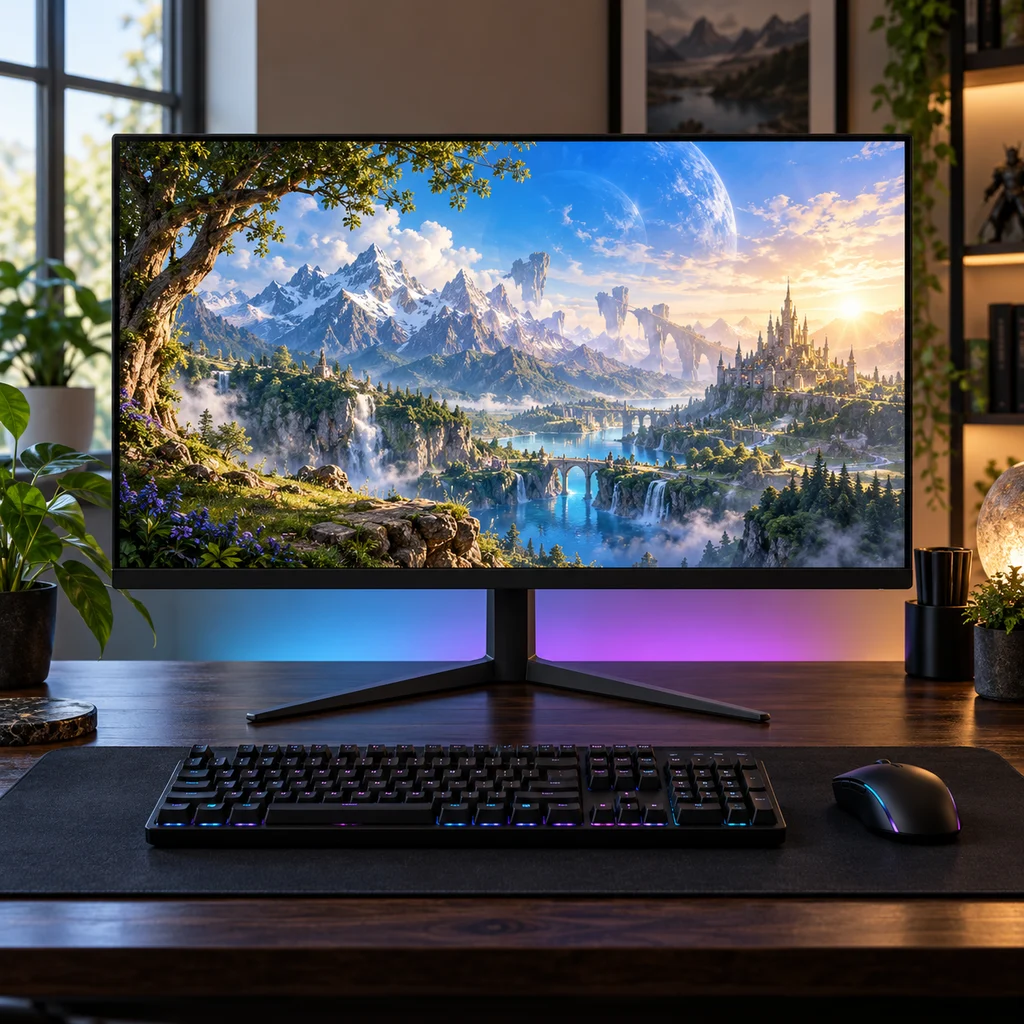
Gaming monitor
What to check
Check the stand height against your eye level. Many budget monitors tilt but do not lift, so plan for a riser or arm.
Show all 16 pieces
-
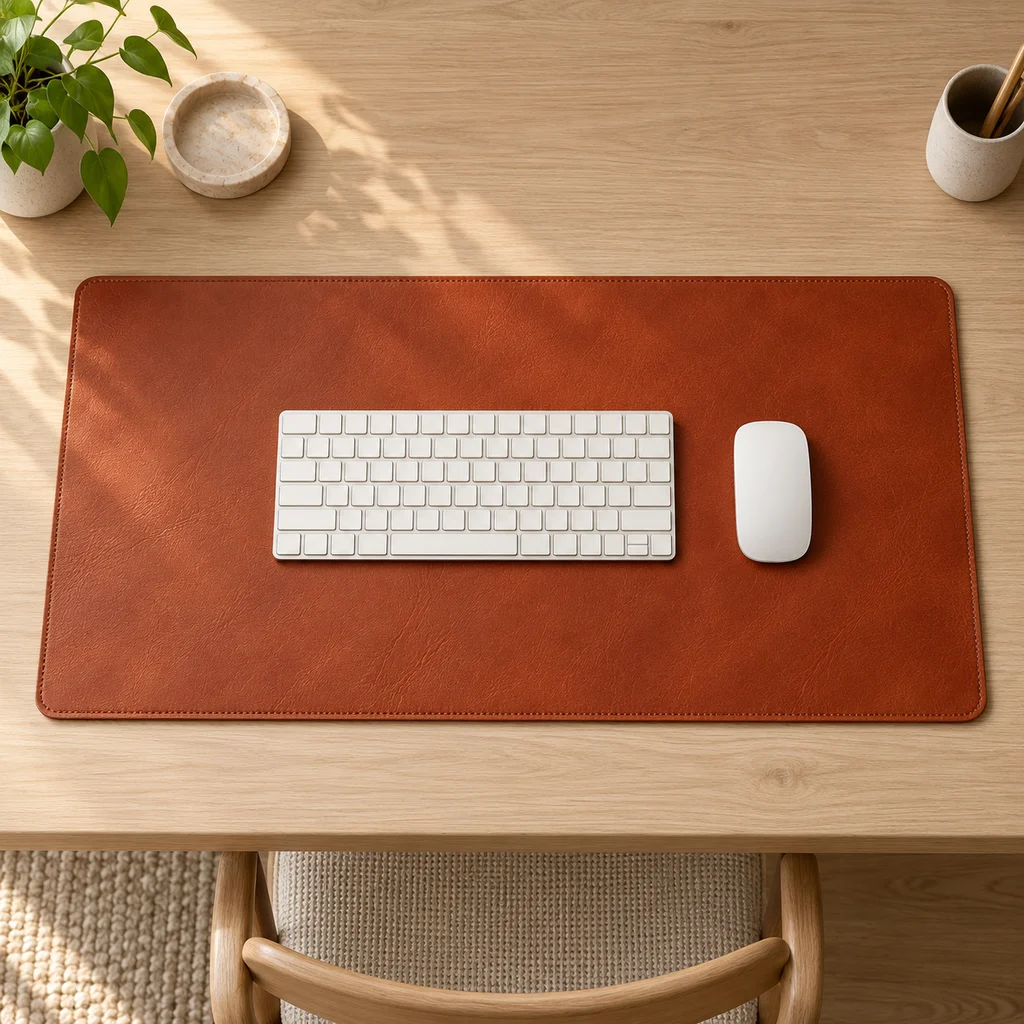
Leather desk mat
What to check
Measure your desk width and depth. A mat should cover the keyboard and mouse area without hanging over the front edge.
-
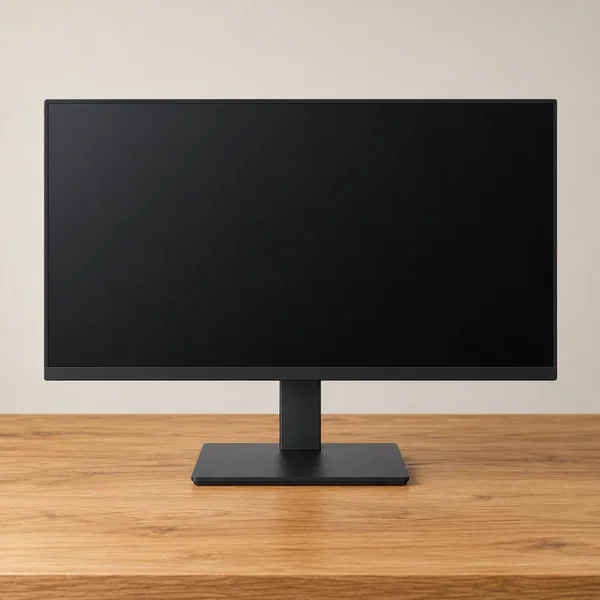
Monitor and stand
What to check
At 27 inches, full HD looks softer up close than 1440p. Check the stand adjusts for height, or that it has VESA holes for an arm.
-
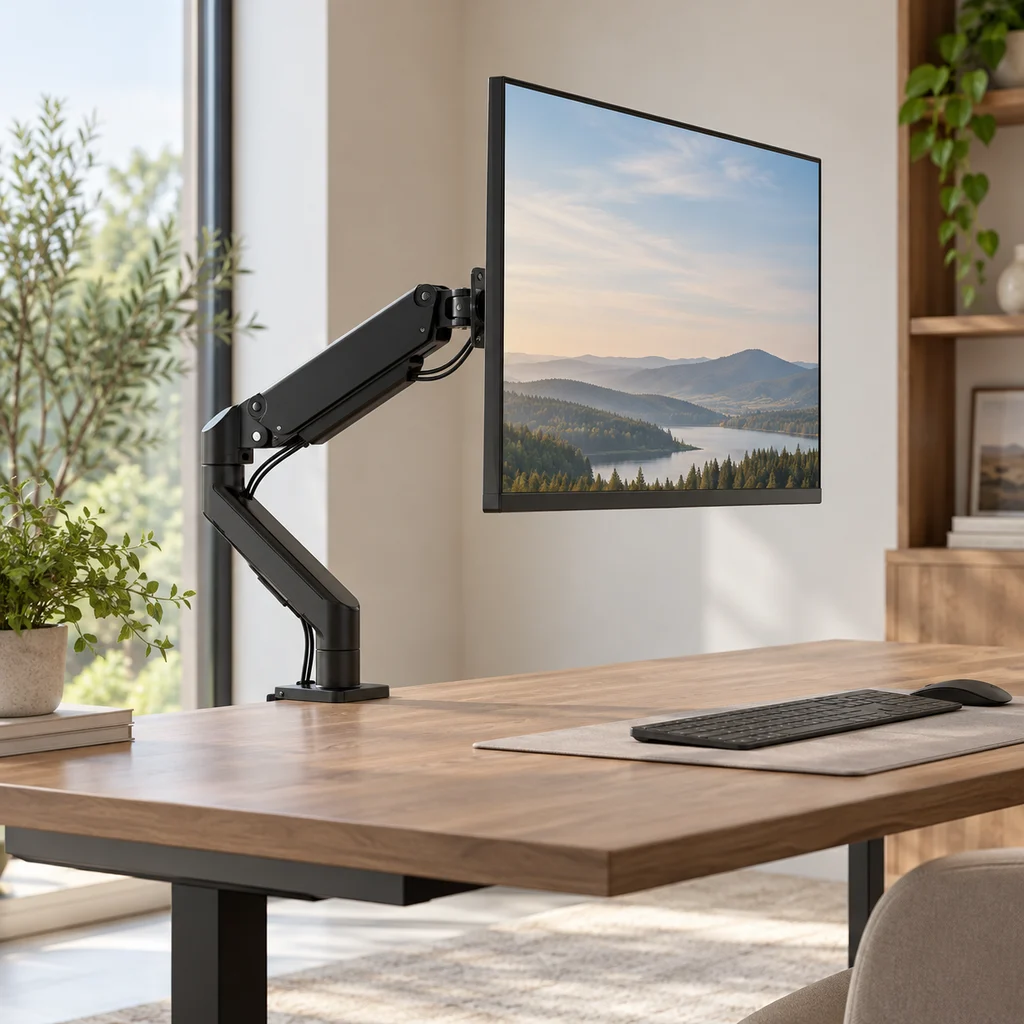
Monitor arm
What to check
Check your monitor's weight and size against the arm's limits, and that your desk edge is thick and strong enough for the clamp.
-
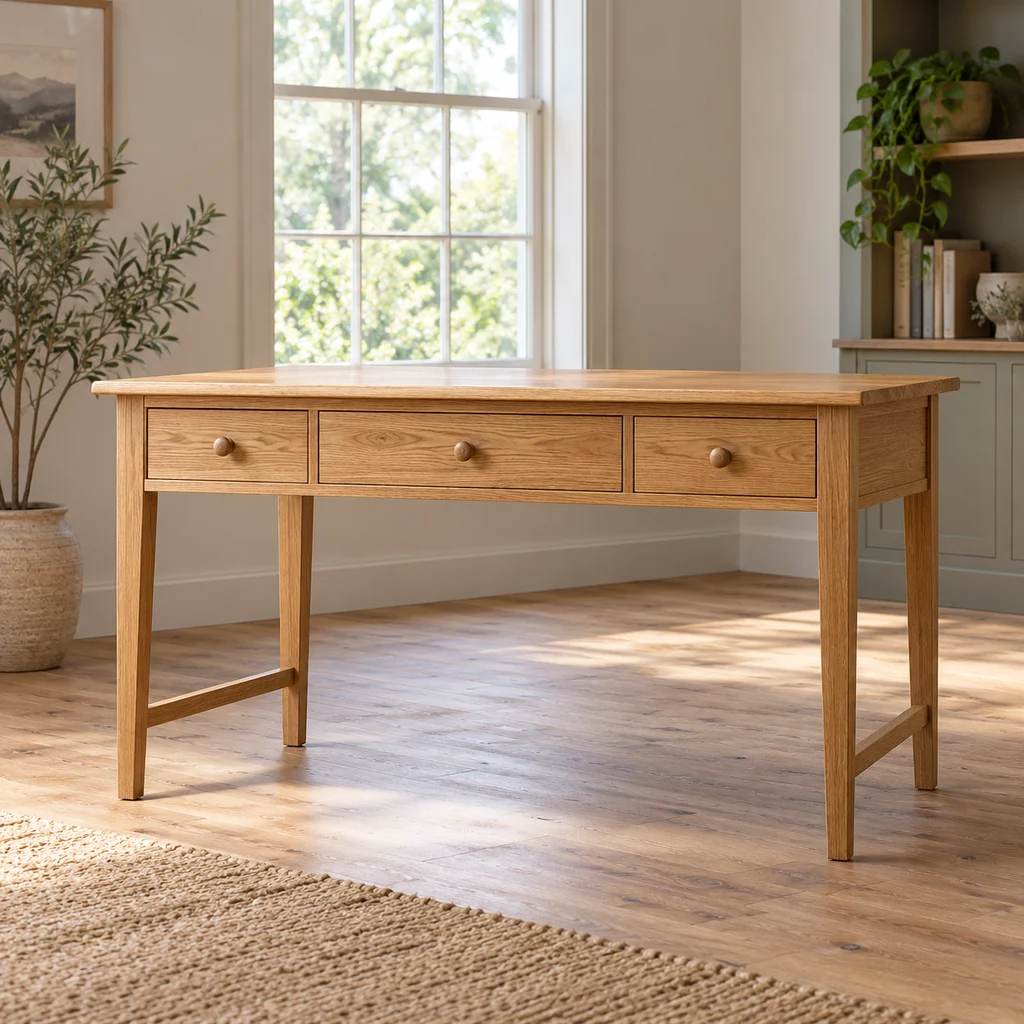
Writing desk
What to check
A desk by a window gives daylight but can put glare on the screen. Place the monitor side-on to the window, not facing it.
-
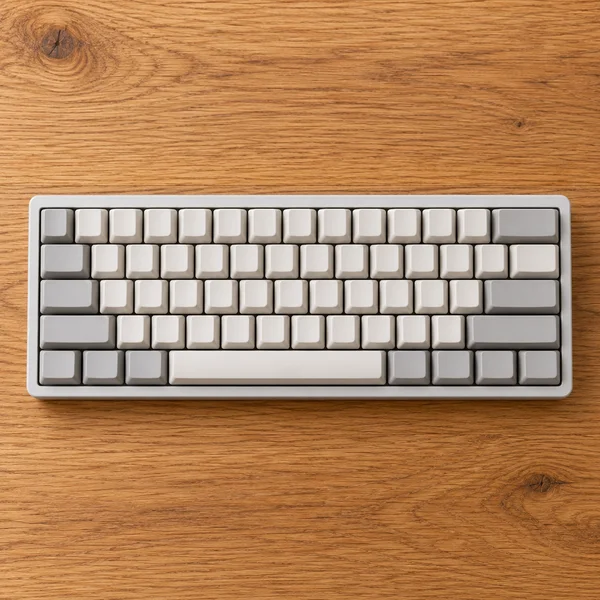
Compact keyboard
What to check
A 60% board has no number pad or arrow keys of its own. Fine for games and writing, slower for spreadsheets.
-
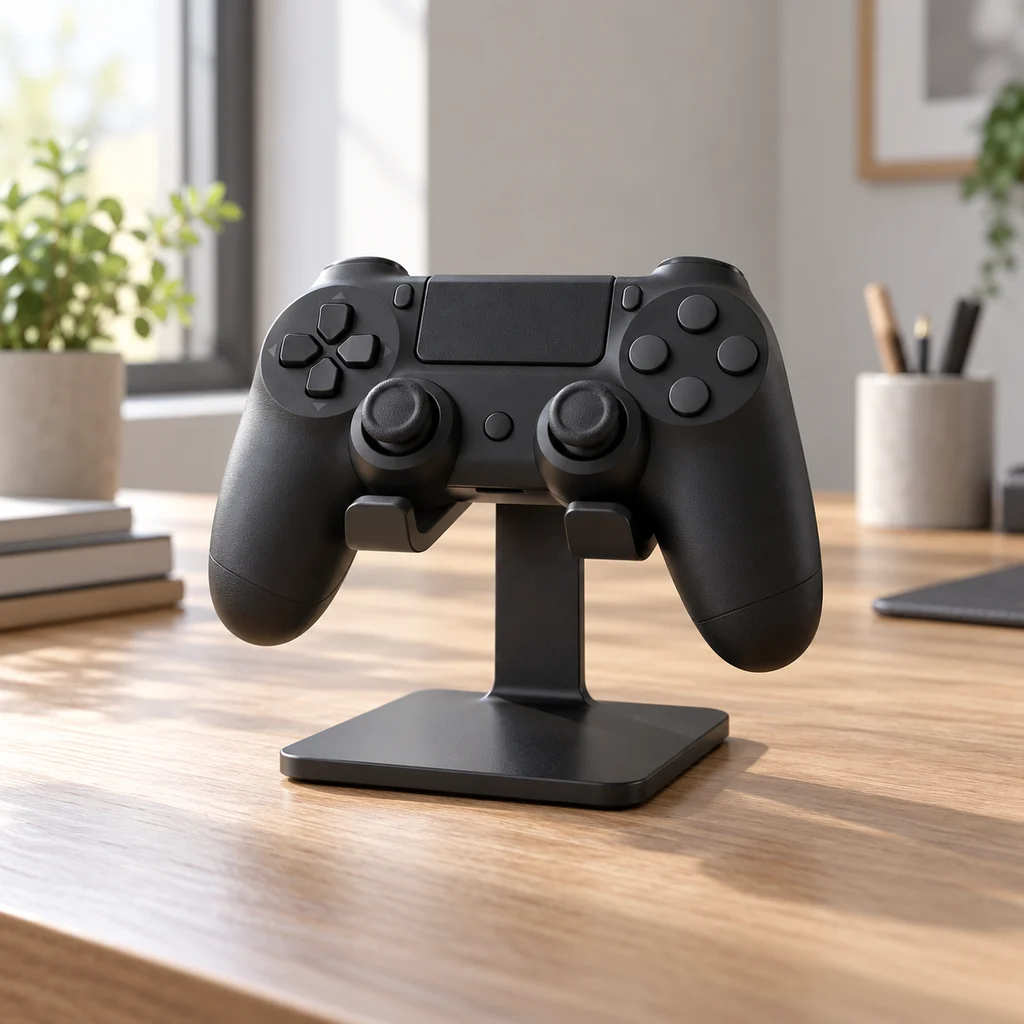
Controller stand
What to check
Count your controllers and check the stand fits them, including any with a large charging dock attached.
-
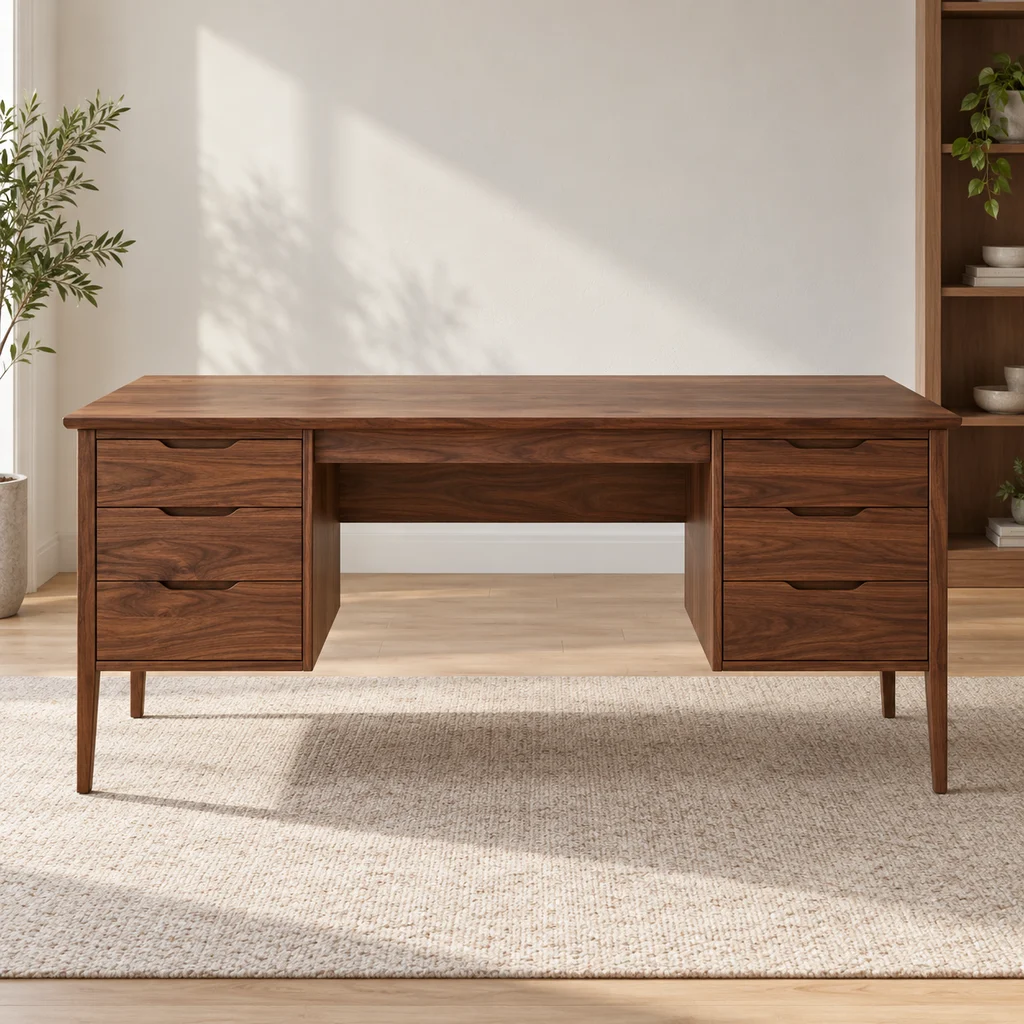
Drawer desk
What to check
Check the desk depth. A monitor needs about an arm's length from your eyes, which a very shallow desk cannot give.
-
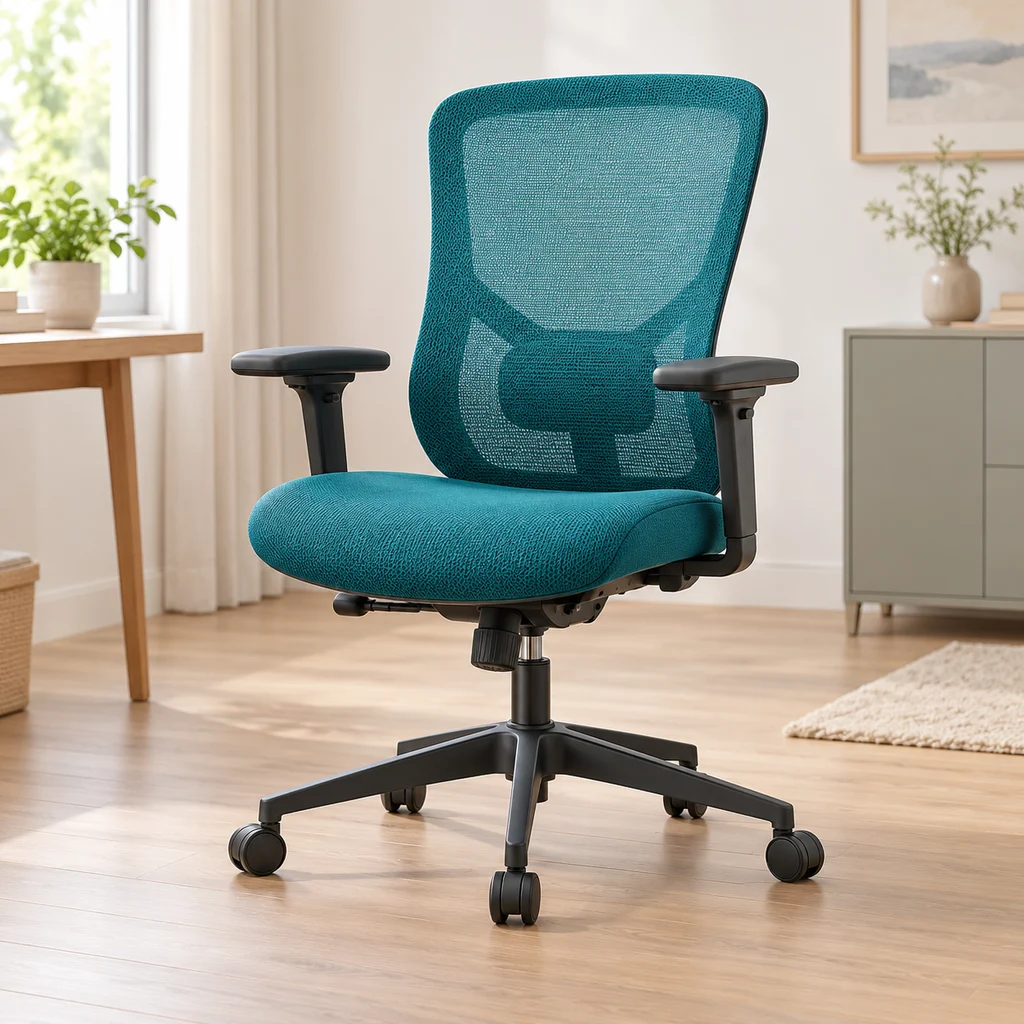
Ergonomic chair
What to check
Check the lumbar support adjusts to the curve of your lower back, and that the armrests drop low enough to slide under the desk.
The gallery
8 work & gaming looks
Open a look to see its pieces.
Keep exploring
Related guides
 Bedroom
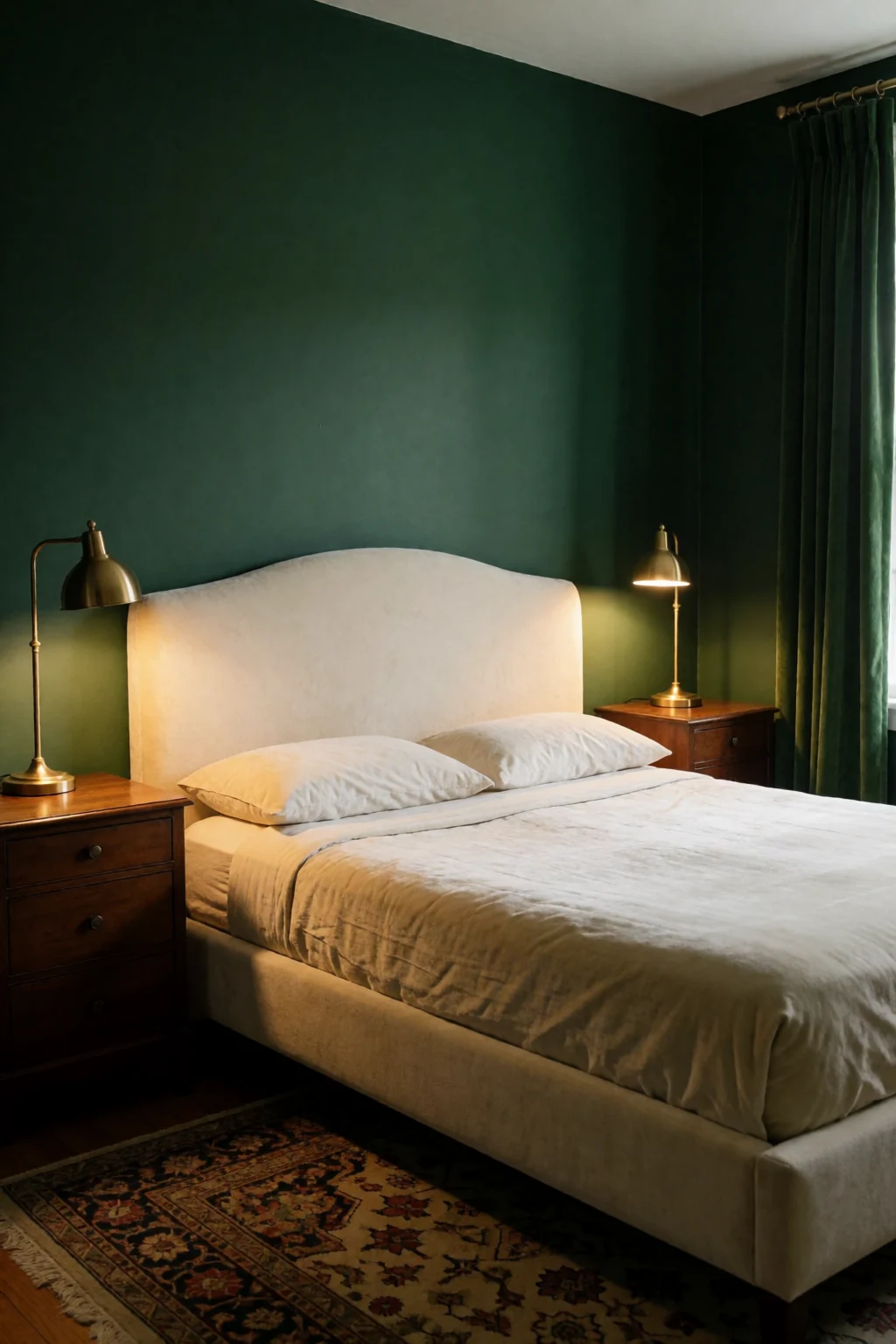
A desk in a bedroom is usually kept visually quiet for sleep, while a two-screen setup puts screen space and comfort first.
 Living room
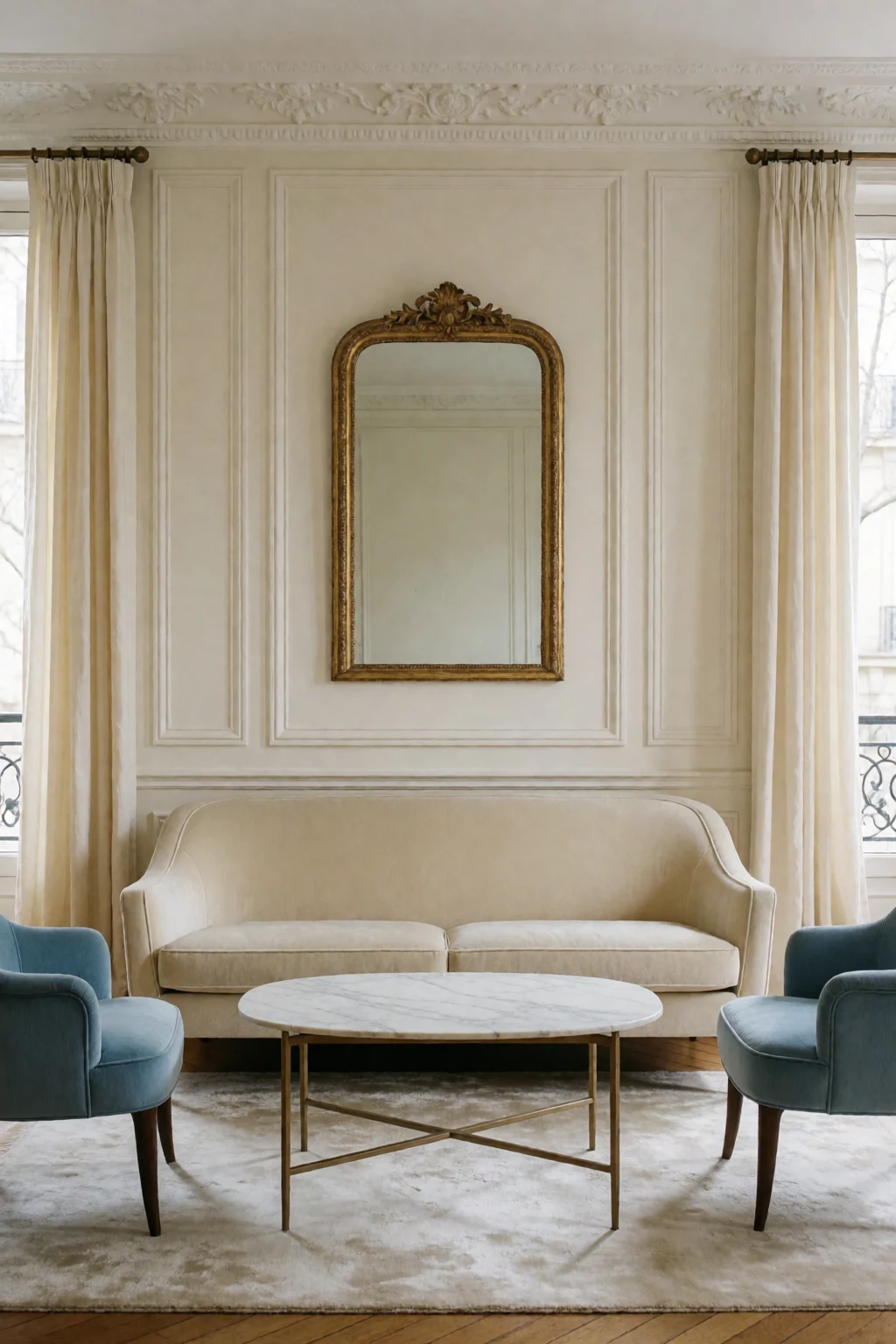
A living room desk has to share space with sofas and guests, while a two-screen desk usually has its own corner.
Questions
Do both monitors need to be the same size?
No, but different sizes make the heights harder to match, and one screen usually ends up slightly off.
How far apart should the screens be?
As close as the stands or arms allow. A gap of about an inch or less between the inner edges is a good starting point.
Can two monitors work on a small desk?
Yes, with arms and the right sizes. Two 24-inch screens on arms need less depth than two 27-inch screens on stands, which makes it realistic on a desk under 48 inches wide.
Do both monitors need the same refresh rate?
It helps if you game on one and watch video on the other. For writing and spreadsheets, a mismatch is rarely noticeable.